How to Factory Reset an iPhone Before Selling (Step by Step)
By syedladen ·
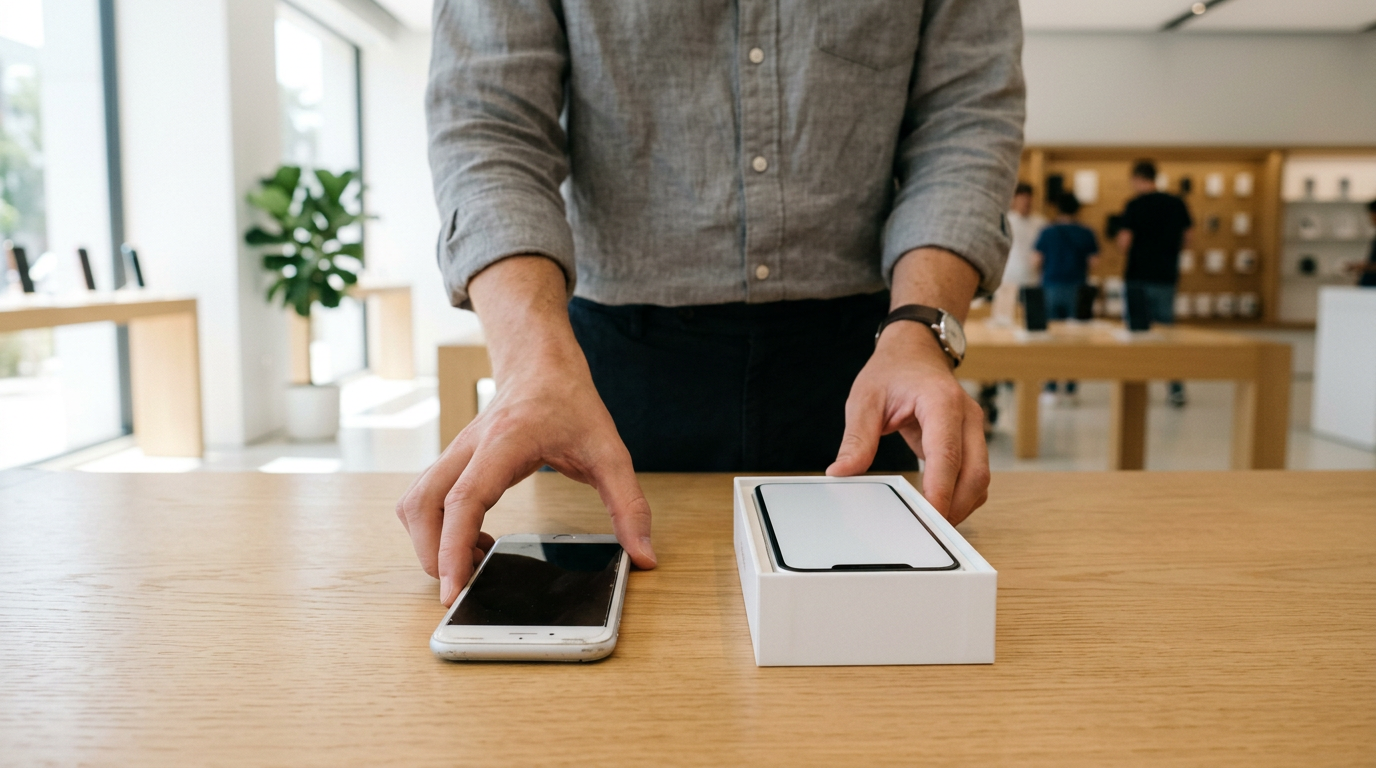
To factory reset an iPhone before selling, back it up, sign out of your Apple Account (which turns off Find My), then go to Settings > General > Transfer or Reset iPhone > Erase All Content and Settings. Done in that order, the phone reaches the buyer with Activation Lock off and can be set up as if it were new.
The order matters more than most guides admit. Erasing a phone that is still tied to your Apple Account can leave it unsellable, and a phone that is Activation Locked is something we cannot buy at all. This walkthrough covers every step, including what to do if you already handed the phone over and forgot to sign out.
Before you start: a five-minute checklist
Gather these first so you do not get stuck halfway through the process:
- Your Apple Account password. Turning off Find My requires it. If you do not remember it, reset it before anything else.
- Your passcode. The phone asks for it before erasing.
- A Wi-Fi connection and decent battery. Plug the phone in. A backup or erase that is interrupted by a dead battery is a headache you can avoid.
- Access to a trusted device or phone number. If you use two-factor authentication, a verification code may be sent to another device.
- Your new phone, if you have one. The smoothest way to move your data is to transfer it to the new phone before you wipe the old one.
Do not wipe the old phone until you have confirmed that your photos, messages, and app data are safely on the new phone or in a backup you can open.
Step 1: Back up your iPhone (iCloud vs computer)
A backup is your only safety net. Once you erase the phone, everything on it is gone. You have two good options, and either one works.
Back up to iCloud
- Connect to Wi-Fi.
- Open Settings and tap your name at the top.
- Tap iCloud, then iCloud Backup.
- Tap Back Up Now and stay on Wi-Fi until it finishes.
To confirm it worked, go back to the same screen and check the date and time listed under Back Up Now. If your iCloud storage is full, the backup will fail with a message. You can free up space or temporarily buy more storage in iCloud settings.
Back up to a computer
- Connect the iPhone to your Mac or PC with a cable.
- On a Mac running a recent macOS, open Finder and select the iPhone in the sidebar. On a PC, or an older Mac, use the Apple Devices app or iTunes.
- Choose to back up all data to this computer.
- Tick Encrypt local backup and set a password you will remember. An encrypted backup keeps saved passwords and Health data that an unencrypted one leaves out.
- Click Back Up Now.
Write that encryption password down somewhere safe. If you lose it, the backup cannot be restored.
| Factor | iCloud backup | Computer backup |
|---|---|---|
| Needs a cable | No | Yes |
| Needs enough storage | Free iCloud space | Free space on your computer |
| Speed | Depends on your Wi-Fi | Usually faster for large libraries |
| Best for | Quick, hands-off backups and restoring on a new iPhone anywhere | Big photo and video libraries, or when iCloud storage is full |
| Watch out for | Backup fails silently if storage is full | Forgetting the encryption password |
If you are moving to a new iPhone, the on-screen transfer between the two phones is also fine. Just make sure the new phone shows your data before you wipe the old one.
Step 2: Deal with your eSIM, SIM card, and Apple Pay first
These are easy to overlook, and they cause the most trouble after the sale.
eSIM and physical SIM
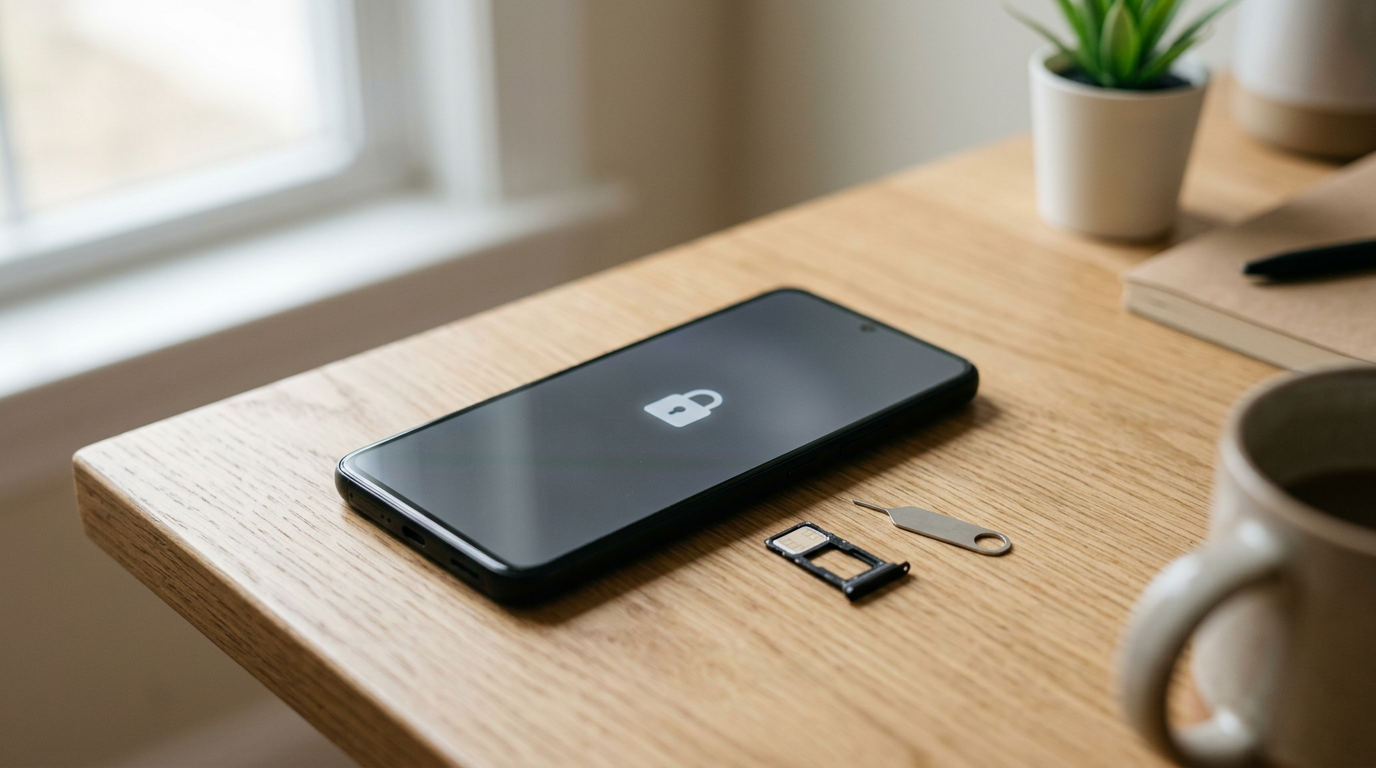
- Physical SIM: eject the tray with a SIM tool or a small paperclip and take your card with you. Many people forget this one.
- eSIM: an eSIM is a digital line stored on the phone. Contact your carrier and make sure the line is transferred to your new phone or cancelled. Depending on your iOS version, the erase process may ask whether to keep or erase the eSIM. If you are selling the phone, choose to erase it, but only after your carrier has moved the line if you want to keep the number.
If you skip this, your number may stay tied to a phone you no longer own, or you may need to call your carrier afterward to sort it out.
Apple Pay cards
Erasing the iPhone removes your cards from Wallet, but it is cleaner to remove them yourself first. Open Wallet, tap a card, tap the three dots, and choose Remove Card. Also remove transit cards, loyalty passes, and digital keys that you do not want left on the device. If you can, check your card issuer's app or website afterward to confirm that the phone no longer shows as a payment device.
Other paired and linked things
- Apple Watch: unpair it from the Watch app before you erase the iPhone. Unpairing also backs up the watch and removes its own Activation Lock.
- iMessage and FaceTime: if you are switching to a non-Apple phone, deregister your phone number from iMessage using Apple's online tool so text messages do not go missing.
- Bluetooth accessories and AirTags: remove anything you want to keep from this phone's list of paired items.
Step 3: Turn off Find My iPhone and sign out of your Apple ID
This is the step that removes Activation Lock. If you searched for how to turn off Find My iPhone before selling, or how to remove the Apple ID from an iPhone, this is it. Apple now calls it an Apple Account, but many people still say Apple ID. They are the same thing.
Follow the menu order exactly:
- Open Settings.
- Tap your name at the top of the screen.
- Scroll to the bottom and tap Sign Out.
- Enter your Apple Account password and tap Turn Off. This is what switches off Find My iPhone and Activation Lock.
- If you want to keep a copy of data such as contacts or calendars on the phone, you will be offered the option. For a phone you are selling, you do not need to keep any.
- Tap Sign Out again to confirm.
If you prefer to switch Find My off by itself first, go to Settings > [your name] > Find My > Find My iPhone, tap the toggle off, and enter your password. Either method works. Signing out handles it in one pass.
If you also use a separate Apple Account for the App Store
Older phones sometimes have a different Apple Account for media and purchases. Check Settings > [your name] > Media & Purchases and sign out of that as well if it is different. The Find My account is what matters most for Activation Lock, but a clean sign-out is a clean sign-out.
Step 4: Erase All Content and Settings
Now you can wipe the phone. This is the actual factory reset.
- Open Settings.
- Tap General.
- Scroll to the bottom and tap Transfer or Reset iPhone.
- Tap Erase All Content and Settings.
- Tap Continue and enter your passcode.
- If you are still signed in to an Apple Account, you will be asked for the password. This is Apple's last check that Find My and Activation Lock are being turned off.
- Confirm that you want to erase the phone, and wait for it to restart.
On older iOS versions, the path is Settings > General > Reset > Erase All Content and Settings. The wording is slightly different, but the result is the same.
The process takes a few minutes. The phone will restart and show a screen with a greeting such as Hello. That is the setup screen. Do not go through setup and do not sign in with your Apple Account again. Leave it on that first screen so the next owner can start fresh.
Why not just delete photos and apps by hand?
Deleting files by hand does not remove everything. System data, account tokens, saved Wi-Fi networks, and app caches can remain. Erase All Content and Settings encrypts and clears the whole device in a way manual deletion never will.
Step 5: Double-check that the phone is truly clean
Spend two minutes confirming before you hand it over.
- The phone boots to the setup screen, not the Home Screen.
- No Apple Account is signed in. If you reach setup and it says nothing about a previous owner, that is a good sign.
- Your SIM tray is empty, or the eSIM has been transferred or removed.
- Your backup exists and can be found on your computer or in iCloud.
- On another device or on iCloud.com, open Find My and check that this iPhone is no longer listed under your devices.
If the phone still appears in your Find My device list, it is not fully released. Read the next section.
Already handed the phone off? Remove it from your Apple Account remotely
It happens all the time. You traded in or sold the phone, then realized you never signed out. The fix is possible from any browser or other Apple device, as long as you are the account owner.
- Go to iCloud.com and sign in with your Apple Account, or open the Find My app on another Apple device.
- Open Find My and select All Devices.
- Choose the iPhone you sold.
- If it still has data on it, choose Erase This Device and follow the prompts. The erase runs the next time the phone connects to the internet.
- Once it is erased, or if it is already offline, choose Remove from Account.
You can also remove it from your list of trusted devices by signing in on your Apple Account page and opening the Devices section. Select the old iPhone and choose Remove from account. Removing it from there does not always lift Activation Lock by itself, so use the Find My steps above when possible.
If you no longer have access to your Apple Account, start with Apple's account recovery process. You will not be able to unlock a device without it.
Keep in mind that once you have sold a phone to someone else, removing it remotely may take a bit of coordination if they have already tried to set it up. If the new owner can see a message saying the phone is locked to an Apple Account, removing it from your account usually clears it.
Why a locked iPhone cannot be bought
Activation Lock is a security feature that ties an iPhone to the Apple Account that was signed in when Find My was on. Without that account's credentials, nobody can set the phone up. Erasing it does not help. The phone reaches the Activation Lock screen and stops.
For a buyer, a locked phone is essentially a brick. We cannot resell it, repair it into a usable unit, or even properly test it. That is why we do not buy devices that are iCloud or Activation locked. The same goes for phones reported lost or stolen, or blacklisted. That policy protects everyone: it keeps stolen phones out of circulation, and it ensures that anyone who buys a phone from us gets one that works.
It also protects you. If you accidentally sell a locked phone, you may be contacted later to unlock it. Taking five minutes to sign out now avoids that.
If you are not sure whether your phone is locked, the easiest test is to follow the steps above and confirm that the phone no longer appears in your Find My list.
What to do vs. what not to do
| Do | Do not |
|---|---|
| Back up to iCloud or a computer first and confirm it finished | Erase the phone before checking that your backup exists |
| Sign out of your Apple Account and turn off Find My before erasing | Leave Find My on and assume the erase will take care of it |
| Use Settings > General > Transfer or Reset iPhone > Erase All Content and Settings | Delete photos and apps by hand and call it done |
| Transfer or cancel your eSIM with your carrier | Leave your number tied to a phone you no longer own |
| Remove Apple Pay cards and unpair your Apple Watch | Forget cards, passes, or a paired watch on the old phone |
| Stop at the Hello setup screen | Sign in again or run through setup after erasing |
| Remove the device from your account remotely if you already handed it over | Ignore it and hope the buyer works it out |
| Take your physical SIM card out | Hand over the phone with your SIM still inside |
What to expect when you sell to us
If you would rather not do this alone, you can bring the phone to a store and we will walk through it with you. Every sale includes a free data wipe in store, but the Apple Account sign-out must still be done by you, because only you have the password. See how selling to us works for the full flow.
In short: get a free quote online, by text, or in person, have the phone inspected quickly, and get paid on the spot. No appointment is needed, and you will need a valid government photo ID for every sale. If you are far from a store, there is a mail-in option. You can find a store near you or start on our sell your iPhone page.
Prices depend on model, storage, condition, and current demand, and we do not publish them. The only way to see what your phone is worth is to get a free cash quote. A phone that is fully wiped and unlocked is much easier to inspect and pay for quickly.
Frequently asked questions
Does Erase All Content and Settings remove Activation Lock?
Not by itself in every case. On recent versions of iOS, the erase process asks for your Apple Account password if Find My is on, which turns Activation Lock off. The safest approach is still to sign out and turn off Find My first, then erase. Then you can be sure it is released.
Can I sell an iPhone without knowing the Apple ID password?
Not if Find My is on. The phone cannot be released without the account's credentials. If you forgot the password, use Apple's account recovery first. We cannot buy a phone that is still locked to an account.
How do I turn off Find My iPhone before selling if I do not have the phone anymore?
Sign in to iCloud.com or use the Find My app on another Apple device, choose All Devices, pick the phone, and then choose Erase This Device and Remove from Account. This releases the phone from your account remotely.
Will a factory reset delete my backup?
No. Erasing the phone only affects the phone. Your iCloud backup and computer backups stay where they are. But a backup is only useful if you can access it, so check your iCloud storage or the backup file on your computer before wiping.
Do I need to remove my SIM card before selling an iPhone?
Yes, take out any physical SIM card. For an eSIM, contact your carrier to transfer or deactivate it, and then let the erase process remove it from the phone.
What happens to my Apple Pay cards when I erase the iPhone?
They are removed from the phone. It is still a good idea to remove them in Wallet yourself first, and to check with your card issuer if you want confirmation that the phone no longer appears as a payment device.
Can I sell a cracked or broken iPhone that I cannot erase?
Yes, as long as it is not Activation Locked, lost, stolen, or blacklisted. We buy used, new, and broken devices. If the screen does not work, try to sign out and remove the phone from your account remotely through Find My, then bring it in and we will handle the data wipe.
Ready to sell? Get your free cash quote online, by text, or walk into a store, and get paid on the spot once your iPhone is wiped and signed out.
Hear from a real customer
Real experience, real cash. Working or broken, get a free quote and walk out with cash the same day.
Compare your options
See how selling to us stacks up against other ways to sell, side by side.