What Happens to Your Data When You Sell Your Phone?
By syedladen ·
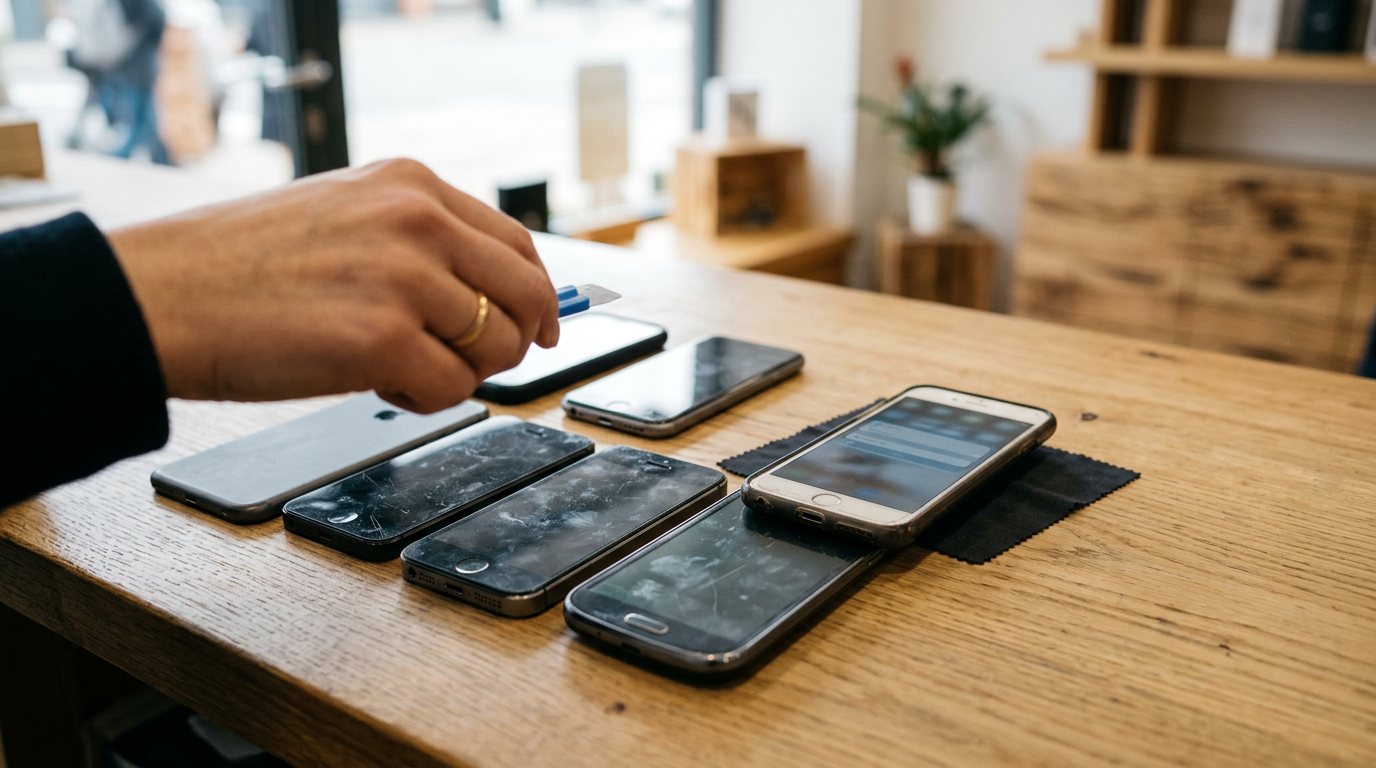
When you sell a phone, your data only stays a risk if you skip the prep steps. A proper factory reset on a modern iPhone or Android phone makes your personal data unreadable, and the real danger is leftover accounts, SIM cards, and memory cards that you forgot to deal with.
This guide is for the careful seller. It explains what a reset really does, what it leaves alone, which accounts to sign out of first, and what to do if your phone will not even turn on. It also covers the free data wipe we offer in our stores, so you have a safety net if you are unsure about any step.
What actually happens to your data when you sell a phone
Your phone holds three kinds of information, and each one is handled differently:
- Data stored on the device itself: photos, messages, app data, saved passwords, downloaded files, call history, and settings. A factory reset targets this.
- Data tied to your accounts: your Apple Account, Google account, Samsung account, and the cloud backups attached to them. A reset does not delete these accounts, and it does not delete cloud backups. It only disconnects the phone from them, and only if you sign out properly.
- Data on removable or external pieces: your SIM card, any microSD card, and paired accessories such as a smartwatch. These are separate from the phone's internal storage and need their own handling.
Once you understand that split, selling a phone stops feeling like a leap of faith. You are doing three small jobs: erase the device, release the accounts, and remove the physical cards. Do all three, and the buyer receives a clean, working phone with nothing of yours on it.
Does a factory reset delete everything?
For a modern phone, a factory reset is effective, and the reason is encryption. It helps to know how it works so you can trust it.
How encryption makes a reset trustworthy
Current iPhones and the large majority of Android phones in use today encrypt their internal storage by default. Everything written to storage is scrambled with a secret key that is protected by your passcode and the phone's hardware. When you reset the phone, the key is destroyed. The scrambled data may technically still sit in storage for a while, but without the key it is unreadable noise. This is why a reset on an encrypted phone is considered a solid way to wipe it, and why it is much quicker than the old method of overwriting every bit of storage.
iPhone: Erase All Content and Settings
On an iPhone, the tool is Settings > General > Transfer or Reset iPhone > Erase All Content and Settings. Because iPhone storage is encrypted from the start, the erase discards the keys and the phone returns to its out-of-box state, typically within a few minutes. During the process you will be asked for your passcode and your Apple Account password, which turns off Find My and Activation Lock for that device. If you are also moving to a new phone, the transfer tools in the setup process are designed to carry your data across before you erase the old one.
If you plan to sell your iPhone, note that an iPhone still tied to your Apple Account with Activation Lock on cannot be sold on, and we do not buy iCloud or Activation locked devices. Signing out is not optional.
Android: Factory data reset
On Android, the path varies by brand, but it is usually Settings > System > Reset options > Erase all data (factory reset). On Samsung it is typically Settings > General management > Reset > Factory data reset. Android has used default encryption on newer devices for years, so the same principle applies: the reset removes the encryption keys and your data becomes unreadable. Some older or budget Android phones may not have had encryption turned on. If your phone is quite old, check Settings > Security for an encryption status and enable it before resetting if you can. That is a belt-and-braces step, and it is one more reason to use a store wipe if you are unsure.
What a factory reset does not touch
The reset is only half the story. Here is what it handles and what stays your responsibility.
| Item | Removed by a factory reset? | What you should do |
|---|---|---|
| Photos, texts, app data on the phone | Yes, made unreadable | Back up first, then reset |
| Cloud backups (iCloud, Google, Samsung Cloud) | No | Keep them for your new phone; delete old ones only if you no longer need them |
| Apple Account, Google account, Samsung account | Not reliably, unless you sign out first | Sign out and remove the device before resetting |
| Activation Lock and Factory Reset Protection | No, these are designed to survive a reset | Remove the account so the lock is released |
| Physical SIM card | No | Take it out and keep it |
| eSIM | Only if you choose to erase it | Transfer to the new phone, then remove or erase |
| microSD card | Usually no | Take it out and keep it |
| Paired smartwatch, earbuds, Bluetooth devices | Paired entries are cleared, but the other devices still know your phone | Unpair the watch before resetting |
| Authenticator apps and 2FA codes | Yes, they are erased | Move them to your new phone first |
The pattern is clear: the reset erases the phone, and you manage everything attached to it.
Before you wipe: back up and move what matters
A reset is permanent. Many people search for how to wipe a phone before selling, and the mistake that actually hurts is not leaking data, it is losing something irreplaceable. Spend ten minutes on this checklist before erasing.
- Back up photos and videos. Confirm they appear in iCloud Photos, Google Photos, or on a computer. Open them from another device to be sure.
- Transfer to your new phone. Use Apple's Quick Start or Samsung Smart Switch or Google's setup transfer. Do this while the old phone still works.
- Move two-factor authentication. Authenticator apps often do not transfer automatically. Move each account, or use the app's export or backup feature, before you reset. Otherwise you can be locked out of banking and email.
- Save your chats. WhatsApp, Signal, and similar apps have their own backup or transfer processes.
- Check your passwords. If your passwords live in a built-in manager or a third-party app, make sure they are synced to your account and accessible on your new phone.
- Note any digital wallet cards and passes. Cards in Apple Wallet or Google Wallet can usually be re-added, but some tickets, keys, and transit cards need extra steps.
Accounts to sign out of first
Signing out matters because modern phones have anti-theft locks that are meant to survive a reset. They protect you if your phone is stolen, but they also mean a phone you sold while still signed in becomes unusable, and it cannot be resold. Here is what to handle on each platform.
Apple Account (iPhone, iPad, Mac, Apple Watch)
- Go to Settings > your name > Sign Out and enter your password to turn off Find My.
- If you have an Apple Watch paired, unpair it first from the Watch app, which also removes the watch's Activation Lock link.
- After erasing, confirm the phone shows the setup screen ("Hello") and not a request for someone's Apple Account.
- If the phone is gone or will not turn on, sign in at iCloud.com, open Find My, choose the device, and remove it from your account.
Google account and Factory Reset Protection (FRP)
Factory Reset Protection is a security feature on Android. If you reset a phone that still has a Google account on it, the phone asks for that account's login at setup. That is great against thieves and terrible for a buyer, so remove it properly:
- Go to Settings > Passwords & accounts (or Accounts) and remove your Google account, and any other Google accounts on the phone.
- Turn off any screen lock you do not need during the process, then do the factory reset.
- If you cannot reach the phone, open your Google Account's security page on a computer, look at your devices, and sign out of the phone from there.
Samsung account
On Samsung phones, also remove your Samsung account under Settings > Accounts and backup > Manage accounts, and turn off Find My Mobile and Reactivation Lock if they are enabled. Samsung's lock is separate from Google's, so removing one does not clear the other.
Other accounts worth a quick check
- Other manufacturer accounts, such as Xiaomi, OnePlus, Huawei, or Motorola
- Carrier accounts and apps, particularly if the phone is on a payment plan
- Email accounts, banking apps, and social media (a reset clears them, but signing out first avoids leaving active sessions)
SIM cards, eSIMs, and microSD cards
These are the easiest things to forget and the most personal.
Physical SIM
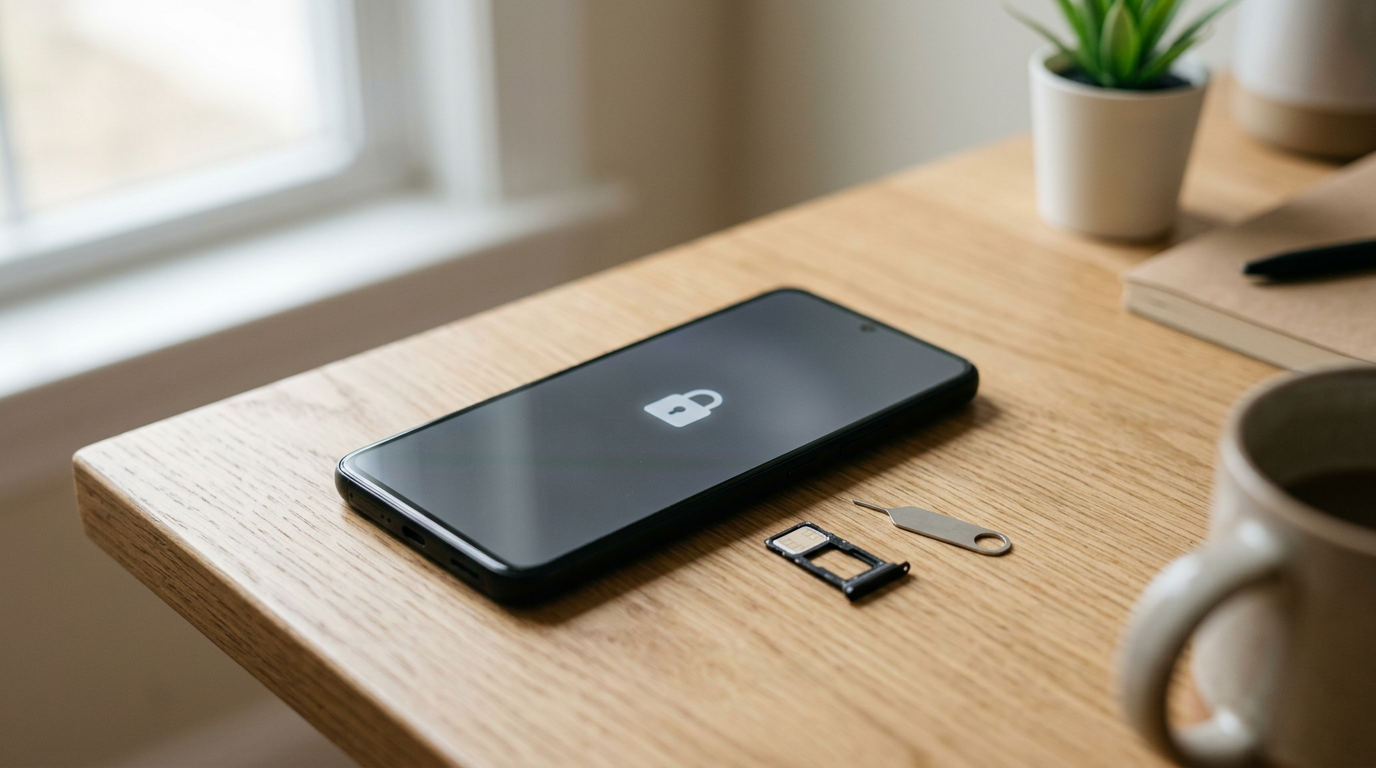
Your SIM card holds your phone number link and sometimes saved contacts. A factory reset will not touch it. Pop it out with a SIM tool or a paperclip and keep it. Either move it to your new phone or ask your carrier to activate a new one.
eSIM
If your phone uses an eSIM, transfer it to the new phone using your carrier's process or your phone's transfer tool. On an iPhone, the erase process can offer to delete the eSIM or keep it, so choose deliberately. Deleting it without a plan can mean contacting your carrier to reissue the line. Do not reset until you know the line is working on the new phone.
microSD card
Some Android phones take a microSD card for photos, music, and app data. A factory reset often leaves that card untouched, which is good for you if you remove it and bad for you if you forget. Take it out and keep it. If you want to reuse the card, copy what you need and format it in the new device. Cards that were set up as internal storage can only be read by the phone that encrypted them, so check your phone's storage settings before removing one.
Our free in-store data wipe
If doing this on your own feels stressful, you do not have to. At Sell Your Gadgets we offer a free data wipe in store as part of the sale. You can walk into any of our store locations in NY, NJ, FL, TX, MD, AZ, GA, or VA, and we will help make sure the phone is cleaned before it leaves your hands.
Here is how it typically works:
- Get a free quote online, by text, or just walk in. There is no appointment needed. You can start with a free cash quote.
- Quick inspection. We check the condition and confirm the phone is not locked to an account, reported lost or stolen, or blacklisted.
- Data wipe. We wipe the phone in store, with you there if you like. This is free.
- Get paid on the spot. We need valid government photo ID for every sale.
Our wipe is a safety net, not a replacement for account sign-out. We cannot buy a phone that is still locked to your iCloud or has an active activation lock, so please remove your accounts before you come in, or bring your login so we can help you do it together. Our how selling to us works page walks through the full process, including the mail-in option for people far from a store.
What to do if the phone does not turn on
A dead phone is a common situation, and it does not mean you cannot sell it or must worry about your data. We buy new, used, and broken devices, including phones with cracked screens, bad batteries, and ones that will not power on.
Try a few things first
- Charge it for at least thirty minutes with a known-good cable and adapter, and check the port for lint.
- Try a forced restart. The button combination depends on the model, so look up yours.
- Try a different outlet or charger. Sometimes the accessory is the problem.
If it still will not turn on
- Remove the accounts remotely. You can still release the phone from your Apple Account through iCloud.com, from your Google Account's device list, or from Samsung's Find My Mobile. This clears the lock concerns even though you cannot touch the phone.
- Take out the SIM and microSD card. Those are physical and easy to keep.
- Change important passwords if you are anxious. A dead phone cannot be signed out, so if it had saved sessions, changing your Apple, Google, and email passwords ends them.
- Bring it to a store. We will tell you what we can do with it, and we can quote it for what it is. Be honest about its condition and we will give you a fair quote based on that.
Remember that encryption protects you here too. Without your passcode, the data on an encrypted phone that cannot start is very difficult for anyone to read. That is not a promise that nothing could ever be recovered, which is why removing accounts and changing passwords is the sensible extra step.
Is it safe to sell your old phone?
Yes, it is safe when you prepare properly and sell to a buyer you trust. The risk is lower than most people expect, but it is not zero, so here is a quick way to judge.
Signs of a trustworthy buyer
- A clear process for data wipes, and a physical store you can walk into
- ID checks on every sale, which discourages stolen-phone dealing and protects you
- An inspection you can watch, with payment at the counter rather than after a long wait
- Honesty about what they will not buy, such as locked, lost, stolen, or blacklisted phones
Red flags
- A buyer who asks for your passcode or Apple or Google password
- Pressure to skip the reset because they will do it later, without letting you sign out first
- Anonymous meetups for large cash exchanges with strangers
- No way to contact them if something goes wrong
Your final five-step checklist
- Back up and transfer everything you need.
- Move your authenticator apps and passwords.
- Sign out of Apple, Google, and Samsung accounts and remove the device.
- Remove SIM and microSD cards.
- Run the factory reset, or have us do the free wipe in store.
If you are comparing options, you can sell your smartphone to us and see a quote with no obligation. Value depends on model, storage, and condition, so a free quote is the only reliable way to know what your phone is worth to us.
Frequently asked questions
Does a factory reset delete everything?
On a modern encrypted phone, it makes your personal data unreadable by destroying the encryption keys. It does not delete cloud backups, remove your accounts unless you sign out first, or touch your SIM or microSD card. Treat the reset as one step in a short checklist.
Can someone recover my data after I factory reset my phone?
On an encrypted iPhone or Android phone, recovery is not practical for ordinary people, because the keys that unlock the data are gone. Older phones without encryption are a different story, which is why it is worth enabling encryption first or using a store wipe.
Should I remove my SIM card before selling my phone?
Yes. The SIM links to your number and is not erased by a reset. Take it out and keep it. If you have an eSIM, transfer it to your new phone before you erase the old one.
What is Factory Reset Protection, and why does it matter?
Factory Reset Protection is Google's anti-theft lock on Android. If a Google account is still on the phone when it is reset, the next person must enter that account's login. Remove your Google account before resetting so the phone can be set up fresh by the next owner.
Can I sell a phone that is still signed in to iCloud?
Not with us. We do not buy iCloud or Activation locked devices. Sign out of your Apple Account and turn off Find My, or remove the device at iCloud.com, before you sell.
What if my phone will not turn on, can I still sell it?
Usually yes. We buy broken devices. Remove the phone from your accounts remotely, take out your SIM and memory card, and bring it to a store for a quote and our free data wipe where it is possible.
Do I need ID to sell my phone to you?
Yes. We require a valid government photo ID for every sale. It protects you and keeps stolen devices out of the market.
Ready to sell with confidence? Get your free quote online or by text, or walk into a store near you, and we will handle the data wipe for free while you get paid on the spot.
Hear from a real customer
A real customer on their experience. Working or broken, get a free quote and walk out with cash the same day.
Compare your options
See how selling to us stacks up against other ways to sell, side by side.