
Sell a Laptop That Won't Turn On for Cash: Step-by-Step Guide
By syedladen ·
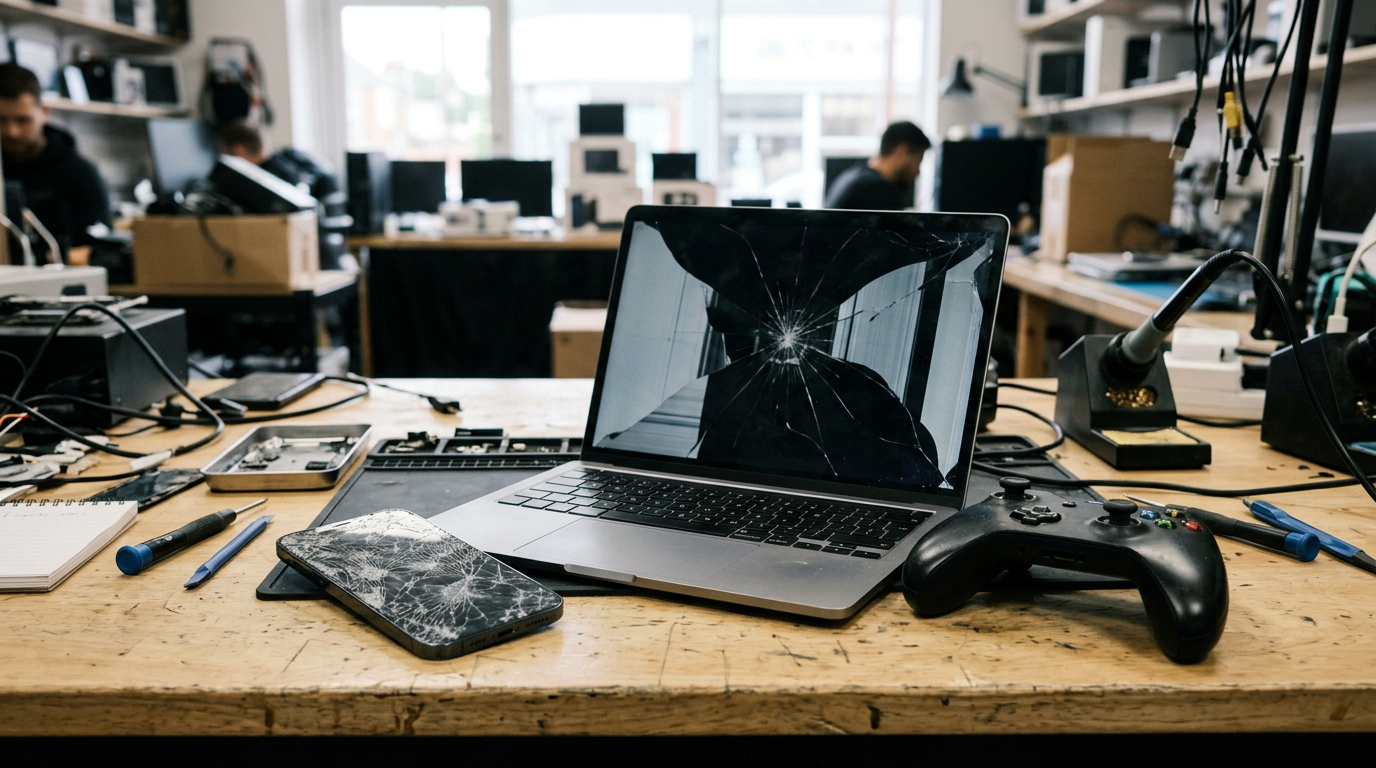
Yes, you can sell a laptop that won't turn on, and in most cases it still earns a cash offer. Buyers like Sell Your Gadgets pay for dead laptops because the parts, the screen, the storage and often the whole machine can be put back into use, as long as the laptop isn't locked, stolen or blacklisted.
This guide is for anyone staring at a black screen and assuming the laptop is scrap. Below you'll find how to tell a dead charger from a dead battery from a dead board, which damage lowers an offer the most, what not to touch before you sell, how to protect your files when you can't even log in, and how to get a quote today.
Why a laptop that won't turn on still has value
A laptop is a bundle of components, and "won't power on" rarely means every one of them has failed. That's why a dead laptop is not the same as a worthless laptop.
Parts harvesting
Even when the motherboard is gone, other parts are often fine: the display panel, the keyboard, the trackpad, the speakers, the hinges, the RAM, the storage drive, the webcam and the chassis. Repair shops and refurbishers constantly need these parts to fix other machines, and pulling them from a dead unit is a normal way to source them.
Refurbishment
Many "dead" laptops are one inexpensive component away from working. A failed charging port, a tired battery or a single bad power component on the board can be fixed in a refurbishment workflow at a scale and cost that a one-off home repair can't match. A buyer with bench tools and a parts inventory can see value where you see a brick.
What drives value up or down
The model matters most. Recent, higher-spec machines and popular business and Apple models generally hold value better than old budget laptops, even when both are dead. Condition of the screen, body and keyboard matters too. Since we never publish prices, the only way to know where your laptop lands is a free cash quote.
Work out what actually failed: charger, battery or board
Before you sell, spend ten minutes on diagnosis. It costs nothing, it might bring the laptop back to life, and even if it doesn't, you can describe the problem accurately when you ask for a quote. Accurate descriptions get accurate offers.
Step 1: Rule out the wall and the cable
- Plug the charger into a different outlet you know works, not a loose power strip.
- Look for an indicator light on the charger brick or the laptop's charging port. Some chargers have an LED; many laptops have a small charging light near the port.
- Inspect the cable along its whole length for kinks, splits or a warm, burnt smell near the brick.
- Check the port on the laptop for lint, bent pins or a loose, wobbly fit. A port that moves when the plug is inserted is a common failure.
Step 2: Try a known-good charger
Borrow a charger with the same connector and the same or higher wattage rating, ideally from the same brand. USB-C laptops can be picky: a phone charger often can't supply enough power to wake a laptop, so use a proper laptop USB-C charger. If the laptop powers up on a different charger, your problem was the charger, and a replacement brick is a far cheaper fix than anything else on this list.
Step 3: Do a power reset
- Unplug the charger and disconnect every accessory, including USB drives, dongles and external displays.
- If the battery is removable, take it out. If not, skip this.
- Hold the power button down for about 30 seconds to drain residual power.
- Plug the charger back in (with the battery still out, if removable) and try to power on.
If it runs on the charger with the battery out, the battery is the culprit. If it only starts with the battery in, the charger or port may be the weak link.
Step 4: Look for signs of life
Watch and listen for any activity: fans spinning, the keyboard backlight, a caps lock light, a startup chime, drive noise. Then shine a flashlight at an angle on the screen while the laptop is on. If you can faintly see the desktop or login screen, the laptop is running and the backlight has failed. Plug into an external monitor too. A picture on the monitor means the laptop works and only the screen or its cable has died.
How to read the results
| What you see | Most likely cause | What it means for selling |
|---|---|---|
| Works with a different charger | Bad charger or cable | Buy a new charger and use the laptop, or sell it as a working machine |
| Runs only on AC with the battery removed | Dead battery | Usually a modest issue; still sells as a laptop with a battery problem |
| Charging light flickers or port is loose | Damaged charging port | Common, fairly contained damage; describe it accurately |
| Fans or lights come on but no display | Screen, backlight, RAM or board issue | Test an external monitor; if it works, the fault is the display side |
| No lights, no fans, no response on a known-good charger | Power circuit or motherboard failure | Still sells, typically for less, with value in parts and storage |
| Turns on then shuts off, or stuck on a logo | Software, storage or board fault | Often a better outcome than a fully dead board; mention the symptoms |
| Swollen battery, raised trackpad, gapped case | Failing lithium battery | Stop charging it, handle it carefully and tell us when you ask for a quote |
Which damage still gets a cash offer, and what lowers it most
Sell Your Gadgets buys laptops new, used and broken. All of the following generally still qualify for an offer, provided the laptop is not locked, reported lost or stolen, or blacklisted:
- No power or won't charge
- Dead battery or swollen battery (tell us about it)
- Broken or damaged charging port
- Cracked, dead or flickering screen
- Broken hinges or a cracked case
- Dented or bent chassis
- Keyboard or trackpad failures
- Liquid exposure
- Stuck on a boot logo or boot loop
- Motherboard failure
What lowers an offer the most
Not all damage is equal. From most to least painful, here is how it tends to play out:
- Liquid damage and corrosion. It can spread quietly across the board and is the hardest kind of damage to judge, so it lowers offers noticeably.
- Motherboard failure. This removes the most expensive component, leaving parts value. The offer drops, but it rarely disappears.
- Missing parts. A laptop without its storage, battery, back panel or screen has less to work with.
- Bent frame or crushed corners. Structural damage often means the board or display underneath is damaged too.
- Cracked screens. These reduce value, but less than most people expect, especially on a popular model.
- Dead charger or battery. Usually the most forgiving, since these are cheap to replace.
- Cosmetic wear. Scratches and scuffs matter the least on a dead unit.
What can stop a sale entirely
We do not buy devices that are iCloud or Activation locked, reported lost or stolen, or blacklisted. If your laptop is a Mac tied to an Apple ID you can still access from another device, you can remove it from your account remotely (see the data section below). That step alone can be the difference between a sellable laptop and one we can't take.
What NOT to do before you sell
The instinct to fix it first usually costs more than it saves. Avoid these moves.
Don't buy a cheap DIY repair kit
A kit for replacing a motherboard component, a charging port or a battery looks inexpensive, but laptop repairs involve ribbon cables, tiny screws and adhesive that are easy to damage. A slipped tool can turn a one-part problem into a multi-part one. If the fix fails, you have spent money and lowered the offer.
Don't install an aftermarket screen
Third-party panels vary in brightness, color and fit, and a non-original display can be treated as a modification when the laptop is inspected. A cracked original screen is usually easier to evaluate than a mismatched replacement. Fixing the screen yourself before selling rarely pays off.
Don't keep powering on a wet laptop
If liquid got in, every attempt to turn it on can send current through wet circuitry and cause short circuits and corrosion. Power it off, unplug it, disconnect the charger, and don't keep hitting the power button to "see if it works." Don't use a hairdryer or put it in rice either. Heat can damage components, and rice does not draw out moisture well. Get it in for a quote sooner rather than later, because corrosion gets worse with time.
Don't charge or poke a swollen battery
A bulging battery is a safety risk. Stop charging it, keep it away from heat and never puncture or pry at it. Tell the buyer about it up front.
Don't factory reset in a panic
If the laptop still boots to a login screen, don't start deleting or reinstalling things without a plan. Back up what you need first, then sign out of your accounts properly.
Don't send it in for a paid diagnostic you don't need
A diagnostic fee only makes sense if you are seriously considering repair. If you are leaning toward selling, a free quote will tell you the market value of the laptop as it sits.
Protecting your data on a laptop you can't open
This is the real worry for most people with a dead laptop. The good news is that a laptop that won't boot usually means the drive is sitting there intact. Here is how to handle it.
Step 1: Find out what kind of storage you have
- Removable drive. Many Windows laptops have a 2.5-inch drive or an M.2 SSD held by one screw. You can often take it out yourself after opening the bottom panel.
- Soldered storage. Many thin laptops, including most recent MacBooks, have storage fixed to the board. You can't pull it out.
Search your exact model number plus "storage replacement" to see which you have.
Step 2: Recover your files if you need them
If the drive is removable, you can put it into an inexpensive USB enclosure or adapter and plug it into another computer to copy your files. If it's encrypted with BitLocker, device encryption or FileVault, you will need your recovery key. For Windows, it is often saved to your Microsoft account; for Macs, it may be tied to your Apple ID. Find the key before you do anything else, because without it, encrypted data is unreadable. Soldered drives usually need a specialist data recovery service, which can cost a lot, so weigh that against what the files are worth to you.
Step 3: Decide what happens to the drive
You have two sound options:
- Keep the drive. If it's removable, take it out and keep it. You keep your files and they never leave your hands. Tell us when you ask for the quote, since a laptop with no drive is a known, common situation.
- Leave it in and let us wipe it. We offer a free data wipe in store. A laptop that won't power on can't run a normal software wipe, so ask the store how they handle it for your specific machine before you hand it over.
Step 4: Cut off access from your accounts
Do these from a phone or another computer, even though the laptop is dead:
- Apple: sign in to your Apple ID or iCloud account, find the Mac under your devices, and remove it from your account. This turns off Activation Lock so the laptop can be sold.
- Microsoft: sign in to your Microsoft account, open your devices list, and remove the laptop.
- Google and other accounts: review signed-in devices and sign the laptop out. Change passwords for your email, banking, password manager and anything else you used on it.
- Passwords and two-factor apps: if the laptop was your second factor or held a password file, move those to another device now.
Step 5: Take your extras out
Remove SD cards, USB dongles and any stickers or notes with passwords on them.
Repair first or sell as-is? A decision table
The right move depends on the fault, your time and what the laptop is worth working. Use this as a starting point, then check the market value with a free quote before you pay for anything.
| Situation | Repair first? | Why |
|---|---|---|
| Charger or cable is dead | Yes, replace the charger | It is usually the cheapest fix and may bring the laptop back completely |
| Dead removable battery on a newer laptop | Often yes, if you will keep it | A fresh battery is a simple fix, but it matters less to a buyer who can replace it in bulk |
| Charging port damage | Usually sell as-is | The repair involves soldering or a board-level job, and its cost can approach the laptop's worth |
| Cracked screen, rest of laptop works | Usually sell as-is | A quality screen can cost a lot relative to the machine, and an aftermarket panel may lower the offer |
| No power, known-good charger, no signs of life | Sell as-is | Board diagnosis and repair is expensive and uncertain |
| Liquid damage | Sell as-is, quickly | Corrosion worsens over time, and repair outcomes are unpredictable |
| Older, low-spec laptop with any serious fault | Sell as-is | Repair will almost always cost more than the laptop is worth |
| Recent premium laptop with an unknown fault | Get a quote first, then compare to a repair estimate | Higher-value models justify a closer look, but only if the repair price is clearly lower than the gap in value |
| You need the files and the drive is soldered | Recover data first, then sell | Your data is worth more than the laptop, so sort that out before you hand it over |
A quick rule of thumb
Repair only when the fix is cheap, simple and likely to work, such as a charger or a battery you can swap yourself. Sell as-is when the repair is labor-heavy, uncertain or likely to cost nearly as much as the laptop. If you're unsure, getting a quote takes no commitment and gives you a real number to compare against any repair estimate.
Who buys a laptop that won't turn on?
You have a few options, and they differ a lot in convenience and risk.
- Electronics buyback stores. Places like Sell Your Gadgets specialize in used and broken devices, inspect on the spot and pay cash. This is usually the fastest path for a dead laptop.
- Online marketplaces. You might get more from a parts-or-repair listing, but you deal with buyers, shipping, disputes and the risk of a "not as described" claim on a laptop that can't be tested.
- Local repair shops. Some will buy or trade in dead units for parts, though they're often focused on repair rather than buying.
- Recycling programs. Responsible, but they typically don't pay for the device.
Selling a dead laptop near you
If you're searching for someone to buy your laptop near you, Sell Your Gadgets has walk-in stores in New York, New Jersey, Florida, Texas, Maryland, Arizona, Georgia and Virginia. You can find a store near you and walk in without an appointment. If you're far from a store, there is a mail-in option, and you can read more about how selling to us works.
Step-by-step: get a quote for your dead laptop today
- Run the quick diagnosis above. Note whether there are any lights, sounds or signs of life and what happens on a different charger.
- Gather the details. Brand, model, year if you know it, screen size, storage size and any visible damage. The model number is usually printed on the bottom of the laptop.
- Deal with your data. Back up if possible, pull the drive if it's removable and you want to keep it, and remove the laptop from your Apple, Microsoft and other accounts.
- Get a free quote. Start on the quote page or from the laptop selling page, or ask by text. Describe the problem honestly, including any liquid exposure or a swollen battery.
- Bring it in or mail it. Walk into a store without an appointment, or use the mail-in option if you're far away.
- Bring valid government photo ID. It's required for every sale.
- Get inspected and paid on the spot. A quick inspection confirms the condition, and if it matches what you described, you are paid in store.
The more honestly you describe the damage up front, the less likely the offer will change at inspection.
Frequently asked questions
Can I sell a laptop that won't turn on for cash?
Yes. A dead laptop can still get a cash offer because its screen, storage, RAM, keyboard and other parts hold value, and some can be repaired and resold. The exceptions are laptops that are iCloud or Activation locked, reported lost or stolen, or blacklisted, which we can't buy.
How much will I get for a laptop that won't turn on?
It depends on the model, age, specs and the kind of damage. Newer, higher-spec machines generally hold more value even when dead, and liquid damage or board failure lowers offers the most. We don't publish prices, so the reliable way to find out is a free quote.
Do I need to fix the laptop before I sell it?
Usually not. Cheap DIY repairs and aftermarket parts often cost more than they add and can even lower the offer. The exception is an easy one, like replacing a bad charger, which might restore the laptop entirely.
Is my data safe if the laptop won't power on?
The data is probably still on the drive, which means it could be accessed by someone else if you hand the laptop over without dealing with it. If the drive is removable, take it out and keep it. If not, remove the laptop from your online accounts, use encryption to your advantage and ask the store how they wipe a non-booting device. We offer a free data wipe in store.
Can I sell a water-damaged laptop?
Yes, liquid-damaged laptops can still get an offer, though usually a noticeably lower one. Turn it off, unplug it, stop trying to power it on and get a quote soon, because corrosion gets worse over time.
Can I sell a MacBook that won't turn on?
Yes, as long as it isn't Activation locked. Before selling, sign in to your Apple ID from another device and remove the MacBook from your account. Locked Macs are not something we can buy.
What do I need to bring to sell a broken laptop?
Bring the laptop, its charger if you have it, and a valid government photo ID. No appointment is needed. If you removed the drive to keep your files, let us know when you ask for the quote.
Ready to find out what your dead laptop is worth? Get a free cash quote online, by text, or walk into a store, and get paid on the spot if you like the offer.
Hear from a real customer
A real customer on their experience. Working or broken, get a free quote and walk out with cash the same day.
Compare your options
See how selling to us stacks up against other ways to sell, side by side.