Sell Laptop Near Me in Houston, TX: Same-Day Cash Guide
By syedladen ·
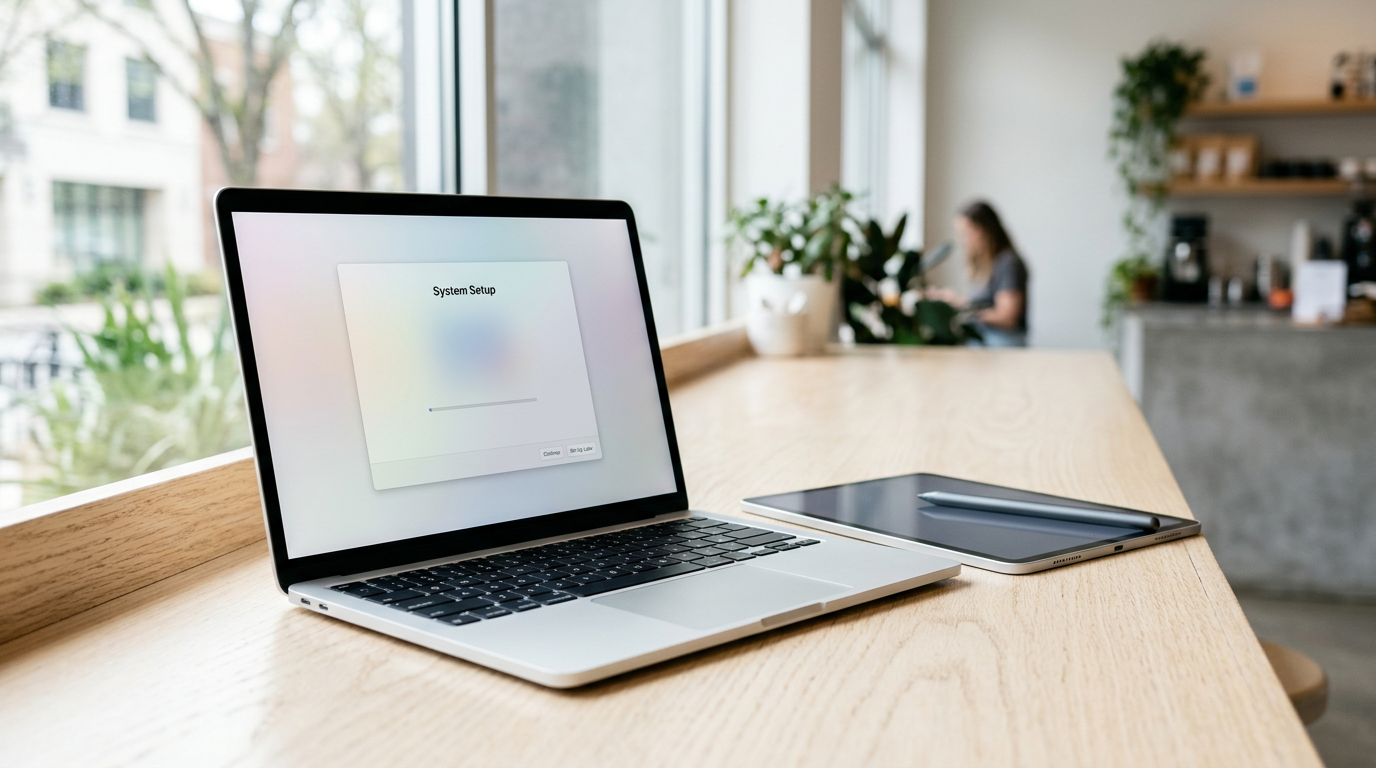
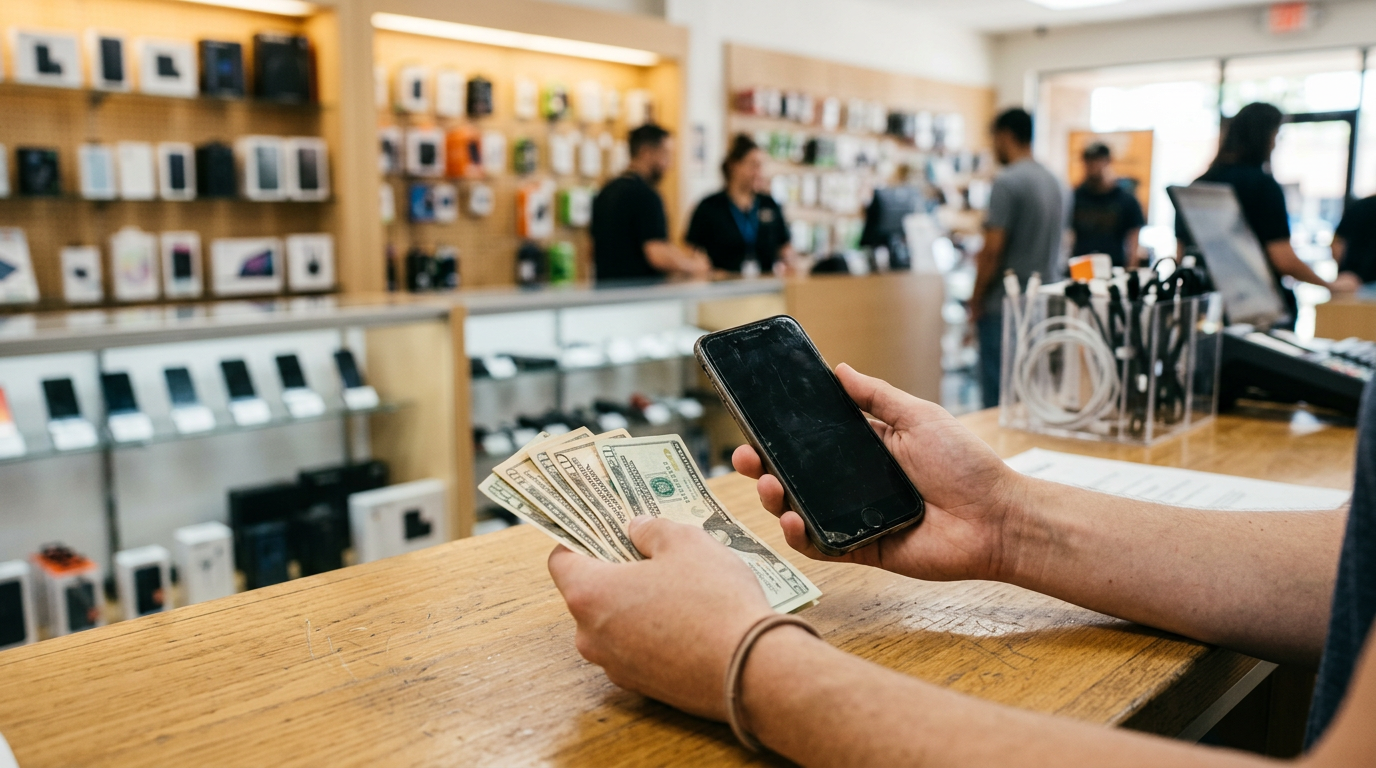
If you want to sell a laptop near you in Houston, TX, bring it to Sell Your Gadgets Houston on Lockwood Dr. We inspect it while you wait and pay cash on the spot, with no appointment needed. MacBooks, Windows laptops, and gaming laptops are all welcome, working or broken, and your offer depends on the model and its condition. Start with a free quote online, by text, or by walking in.
This guide covers where to sell a laptop for cash around Houston, what moves the offer up or down, how to prep a Mac or a Windows machine so the sale goes smoothly, and how to get there from the neighborhoods we serve.
Where to sell a laptop for cash in Houston
Most people searching for where to sell a MacBook for cash near them weigh four options. Each has trade-offs:
- Online marketplaces: You can reach a lot of buyers, but you handle the listing, the photos, the messages, the no-shows, the lowball haggling, and the stress of meeting strangers with a device that holds your personal data.
- Carrier and manufacturer trade-ins: These are convenient, but they often pay in credit rather than cash, and they can be picky about condition.
- Pawn shops: They pay cash, but the process may be built around loans, and the laptop may not be their focus.
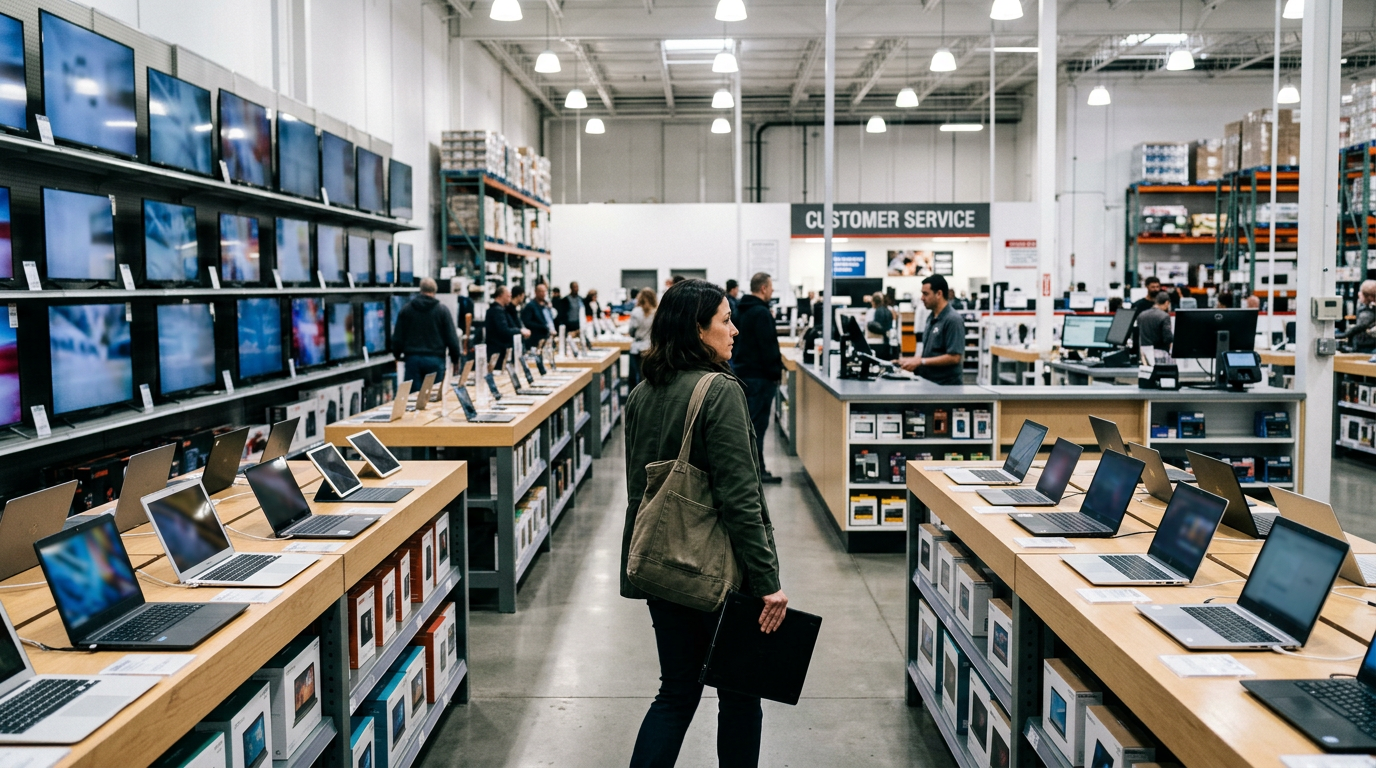
- Kiosks: They are quick, but a machine can't judge a laptop's keyboard wear, hinge, or configuration the way a person can.
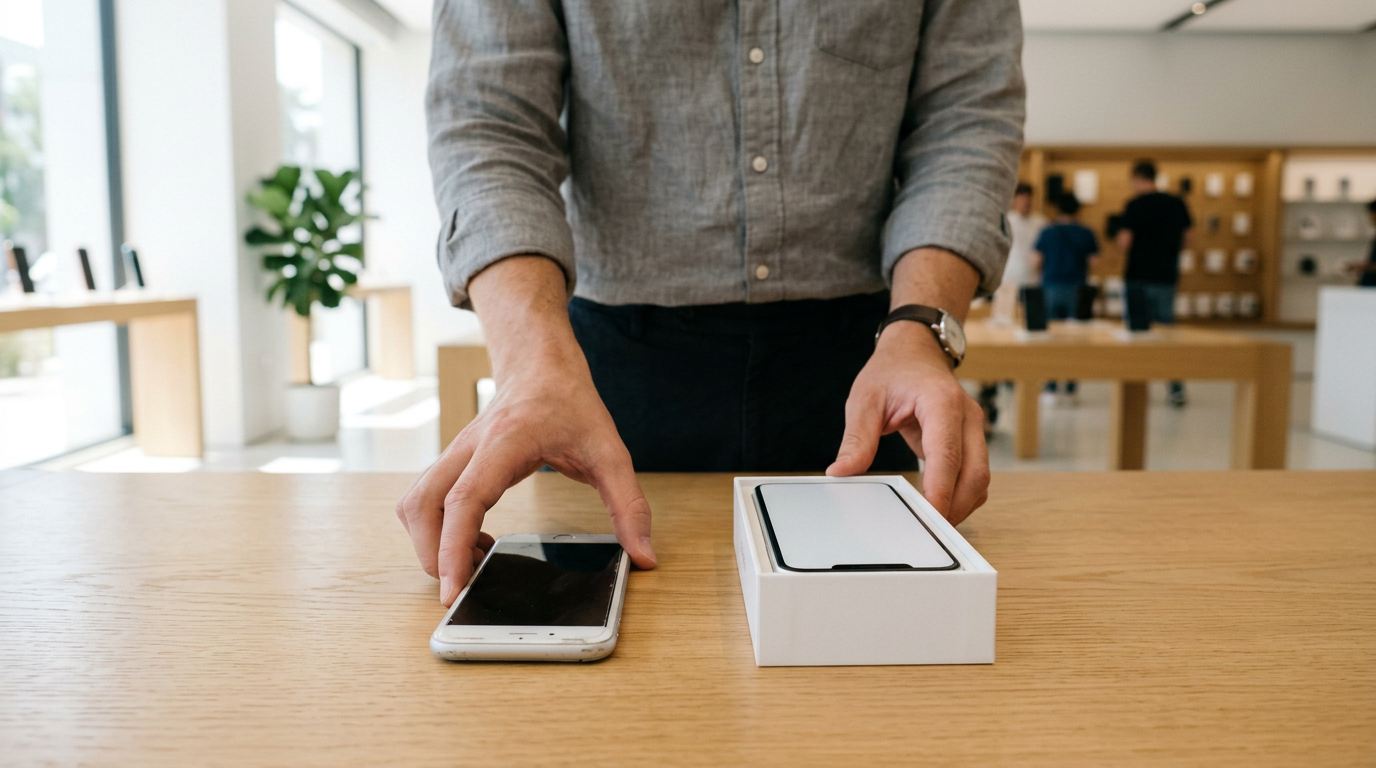
A buyback store sits in the middle. We exist to buy electronics, so there is nothing to list and no one to meet in a parking lot. A person inspects your laptop, explains the offer, and pays you cash. Our Google rating is 4.8 from 862 reviews. Customers often mention friendly, patient staff, a quick and easy process, and not having to deal with the downsides of selling through an online marketplace themselves.
We buy new, used, and broken devices, so a laptop with a cracked screen or a tired battery is still worth a free quote. If you have other gear to sell, see our Texas locations and what we buy.
What drives the value of a laptop
We never publish prices, because two laptops with the same name can be worth very different amounts. These are the factors that move an offer the most, roughly in order of importance.
Chip and processor generation
The processor is the biggest factor. A recent-generation chip is worth more than one from several years ago, and within a generation the tier matters (for example, a higher-end Core i7 or Ryzen 7 versus an i3 or Ryzen 3). On a Mac, the specific chip (M1, M2, M3, and so on, plus Pro, Max, or Ultra variants) sets the baseline.
RAM and storage
More memory and more storage raise value, and they can't be upgraded on most modern MacBooks, so the configuration you bought is the configuration you sell. On many Windows laptops, RAM and SSDs are upgradeable, but buyers still value a strong stock configuration. Know both numbers before you come in.
Graphics card (for gaming laptops)
For gaming laptops, the GPU is often the second most important factor after the CPU. A dedicated NVIDIA GeForce RTX or AMD Radeon card adds real value over integrated graphics, and the exact model matters a lot.
Battery health and cycle count
Every charge cycle wears a battery down. A laptop with a low cycle count and good capacity is more appealing than one that shuts off at 30 percent. A worn battery won't stop us from making an offer, but it can lower it. Battery swelling is a safety issue, so tell us if the trackpad is lifting or the case is bulging.
Screen, keyboard, and body
Scratches, dead pixels, backlight bleed, cracked glass, worn keycaps, sticky keys, a loose hinge, and dents all factor in. Cosmetic wear costs you less than functional damage, but both are considered. The original charger also helps, especially with gaming laptops, which use large proprietary power bricks.
Age, model, and demand
Newer models with current ports and software support hold value better. Laptops that can no longer run current operating systems are worth less, though they can still be worth a quote.
| Factor | Why it matters | Where to check |
|---|---|---|
| Processor | Largest driver of value | About This Mac or Settings > System > About |
| RAM and storage | Sets the configuration tier | Same screens as above |
| Graphics card | Key for gaming laptops | Task Manager > Performance > GPU |
| Battery cycles | Shows wear and remaining life | System Report (Mac) or a battery report (Windows) |
| Screen and keyboard | Functional and cosmetic condition | Inspect in bright light |
Selling a MacBook: Apple silicon, Intel, and Activation Lock
If you're looking for where to sell a MacBook near you, the first thing to know is that the chip family matters.
Apple silicon vs. Intel
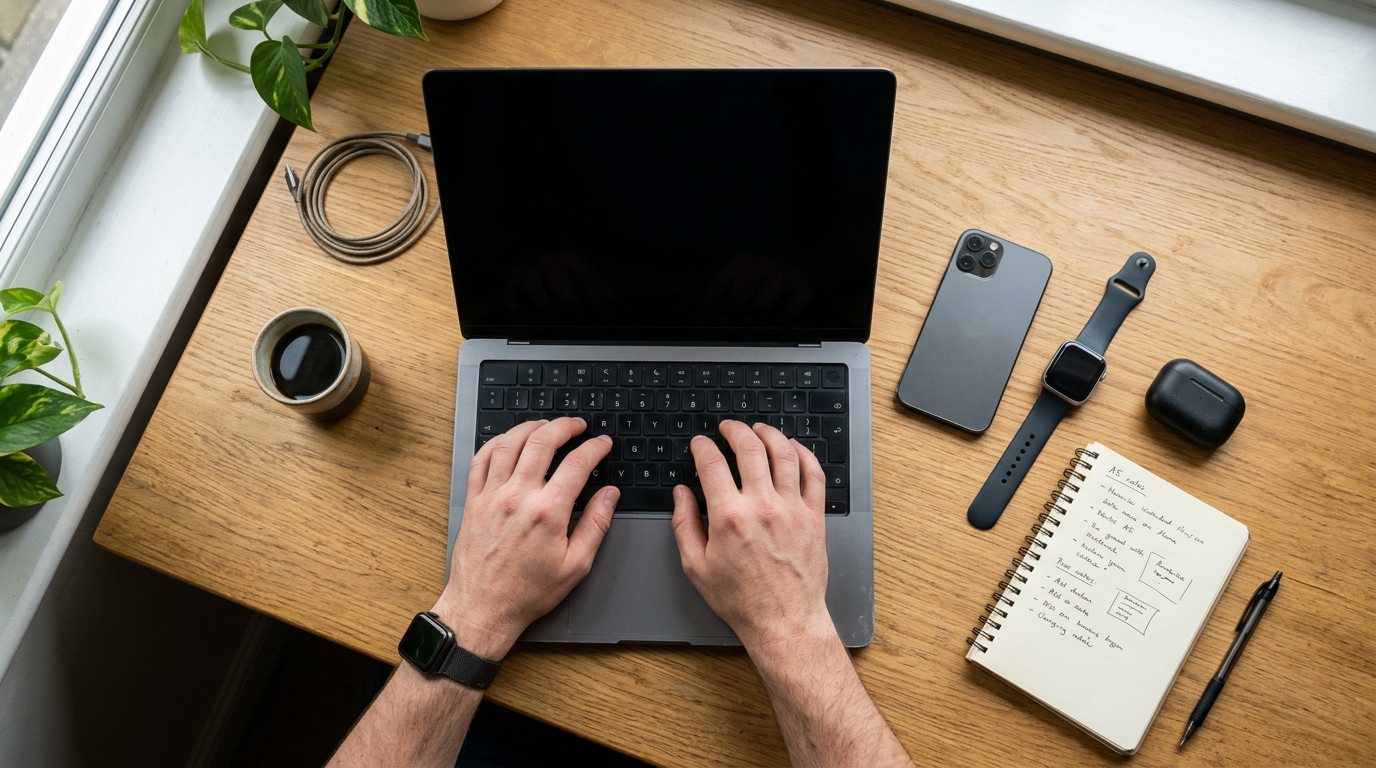
MacBooks with Apple silicon (the M-series chips) are generally more in demand than Intel-era MacBooks because of performance, battery life, and ongoing software support. Intel MacBooks can still have value, especially if they are in good shape, but they are a different category and are usually quoted differently. To find out which you have, click the Apple menu, choose About This Mac, and look at the Chip or Processor line. Note the model name and year, the memory, and the storage while you're there.
Check the battery cycle count
Open the Apple menu, hold Option, choose System Information, then open the Power section. You'll see cycle count and condition. You don't need to do anything with the number, but it is a useful thing to tell us about.
Activation Lock and Find My
Activation Lock ties a Mac to the Apple ID that set it up. If it's still on when you sell, the next owner can't use the laptop, and we can't buy a locked MacBook. The fix is simple: sign out of your Apple ID and turn off Find My before you bring the machine in.
How to sign out of your Apple ID properly
- Back up your files first (see the backup section below).
- Sign out of iMessage and FaceTime if they are separate on your version of macOS.
- Open System Settings, click your name, and choose Sign Out. Choose to turn off Find My when asked.
- Unpair any Bluetooth devices, such as keyboards or headphones, if you want a clean handoff.
- Erase the Mac. On recent Macs, go to System Settings > General > Transfer or Reset > Erase All Content and Settings. On older Macs, restart into Recovery, erase the startup disk, and reinstall macOS.
If you run out of time, don't worry. Bring the laptop and your Apple ID details, and we can help you confirm Find My is off before we wipe the machine in store. The laptop must be free of Activation Lock for us to complete the sale. Also note that a work or school Mac may be locked by device management, which you need to have removed by your IT department before selling.
Selling a Windows or gaming laptop
Windows laptops cover a huge range, from thin office machines to heavy gaming rigs, so the exact specs matter even more.
How to find your specs
- Processor, RAM, and model: Open Settings > System > About. The Device specifications section lists the processor and installed RAM.
- Graphics card: Press Ctrl + Shift + Esc to open Task Manager, go to the Performance tab, and click GPU. Gaming laptops may list two GPUs, an integrated one and a dedicated one. The dedicated one is the one that matters.
- Storage: In Task Manager's Performance tab, check the Disk entries, or open File Explorer > This PC.
- Exact model: Usually printed on the bottom of the laptop or on a sticker near the keyboard. Write it down or take a photo.
- Battery health: Open Command Prompt and type powercfg /batteryreport to generate a report that shows design capacity, full-charge capacity, and cycle count.
Turn off BitLocker and remove your Microsoft account
Many Windows laptops ship with device encryption or BitLocker turned on, often tied to your Microsoft account. Before you sell, decrypt the drive or make sure you can get it wiped cleanly:
- Go to Settings > Privacy & security > Device encryption, or search for Manage BitLocker in the Start menu, and turn it off if it's enabled. Decryption can take a while, so start early.
- Turn off Find My Device under Settings > Privacy & security.
- Remove your Microsoft account from the laptop under Settings > Accounts, or simply reset the PC as described below.
- Sign out of Steam, Epic, Battle.net, Xbox, and any other gaming launchers, and deauthorize the machine if the service asks for it.
Extras that help gaming laptops
Bring the original power brick, since the wrong charger is a real headache on high-wattage machines. If you have the box or accessories, bring them too. Clean the vents with a little compressed air, and mention any overheating or fan noise rather than hoping it goes unnoticed. We'd rather know, and an honest condition report speeds up the inspection. We also buy gaming PCs and monitors, so if you're clearing out a desk, bring it all in.
Back up, sign out, and reset safely
Whatever laptop you have, the order of operations matters. Do things in this sequence:
- Back up first. Copy documents, photos, and project files to an external drive or cloud storage. Check that you can open a few files from the backup before you continue. On a Mac, Time Machine works well. On Windows, File History or a simple copy to an external drive works.
- Export what you can't replace. Think browser bookmarks, password manager exports, game saves that don't sync to the cloud, and software license keys.
- Deauthorize software. Adobe, Microsoft 365, music software, and similar apps often limit how many computers can be activated.
- Sign out of accounts. Apple ID and Find My for Macs. Microsoft account and Find My Device for Windows.
- Reset the machine. Use Erase All Content and Settings on a Mac, or Settings > System > Recovery > Reset this PC > Remove everything on Windows.
A reset can take a while, so give yourself time. If you can't finish it, don't skip the sale. We include a free data wipe in store, but you still need to be signed out of your Apple ID or Microsoft account so that no account locks remain. Doing your own reset is the most private option, and it's good practice with any personal device.
How to get the strongest offer
You can't control the market, but you can control how your laptop arrives. These steps help:
- Get a free quote first. Send us the model, chip, RAM, storage, and condition by online form or text. You'll know what to expect before you head over.
- Be accurate about condition. Mention cracks, dead pixels, swollen batteries, keyboard issues, and liquid exposure. Surprises at the counter slow things down.
- Clean it up. Wipe the screen, keyboard, and body with a microfiber cloth. A clean laptop looks cared for and is easier to inspect.
- Bring the charger. A working original charger is part of a complete laptop, and it saves us from having to test it with our own.
- Don't wait too long. Laptops lose value as new models arrive, so selling an older machine sooner usually beats holding it for years.
- Don't repair it first. A cracked screen or a dead battery may cost more to fix than it adds to the offer, so get a quote on the laptop as it is.
- Bring a valid government photo ID. It's required for every sale under standard secondhand-dealer rules.
What happens when you walk in
Here's how it works at our Houston store:
- Get a free quote by online form, text, or by walking in.
- Bring the laptop in for a quick inspection. We check the specs, power it on, test the screen, keyboard, and ports, and look at battery health and overall condition.
- Review your offer. We explain how we got there. You're under no pressure to accept.
- Get paid cash on the spot if you accept, after we verify your ID. We wipe the data for free in store.
No appointment is necessary. Some customers have mentioned how patient and clear our staff were with their questions, and that matters when you're handing over a device with years of your life on it.
Selling from nearby Houston neighborhoods
We're on Lockwood Dr in the Fifth Ward and Denver Harbor area, close to Boyce-Dorian Park, Finnigan Park, Selena Quintanilla Perez Park, and Japhet Creek Park. Here is how it works for people coming from each area we serve. Major roads like I-10, I-45, and US-59/I-69 connect many of these neighborhoods, so check a map app for the best route at your time of day.
South Central Houston
If you're coming from South Central Houston, you can get to our store through central Houston via the freeways, and most people find it a manageable drive. It's a good trip to make if you have a student laptop, a work MacBook you've upgraded from, or a gaming laptop that's been sitting in a closet. Text us the model beforehand so you know the answer before you go.
East Downtown
East Downtown (EaDo) is one of the closest areas, a short drive north and east from the center of the city. Many people there work in tech, hospitality, or creative fields and use MacBooks for their jobs. If you've moved to a newer machine, stop by on your way across town with your charger and your ID.
Northside
From the Northside, you can head toward us via local roads and the main freeways, and the trip is usually a short one. It's a practical option if you'd rather deal with a person in a store than with strangers online. Bring a backed-up, signed-out laptop and you'll likely be in and out quickly.
Trinity / Houston Gardens
Trinity and Houston Gardens residents are a short drive away. If you have a laptop with a cracked screen or a battery that won't hold a charge, we buy broken devices too, so there's no need to fix it first. Ask for a free quote before you come, and bring your ID.
Northeast Houston
From Northeast Houston, you can reach us by heading toward the inner loop via the major roads. Families in the area often have several laptops between school and work, so feel free to bring more than one, along with tablets or consoles that you no longer use. We buy those as well.
Pleasantville Area
If you're coming from the Pleasantville area, you're close enough for a quick trip. Transit riders can also use the Fifth Ward/Denver Harbor Transit Center as a reference point when planning their route. Pack your laptop in a padded sleeve and don't forget the charger and your ID.
Frequently asked questions
Can I sell my laptop for cash today?
Yes. Walk in during store hours with your laptop and a valid government photo ID. We inspect it, make an offer, and pay cash on the spot if you accept. No appointment is needed, but a free quote beforehand helps you plan.
Do you buy MacBooks with Activation Lock on?
No. A MacBook locked to an Apple ID can't be resold, so sign out of iCloud and turn off Find My first. If you need help, bring your Apple ID information and we can walk you through it in store.
Do I need to wipe my laptop before I come in?
It's best to back up and reset it yourself if you can. If you can't, we offer a free data wipe in store. Either way, you need to be signed out of your Apple ID or Microsoft account, and BitLocker should be turned off.
Will you buy a broken or damaged laptop?
We buy new, used, and broken devices. Cracked screens, worn batteries, and keyboard problems may affect the offer, but they don't rule out a sale. Tell us about the damage when you ask for a quote.
How much will I get for my laptop?
We don't quote prices publicly because the offer depends on the exact model, specs, and condition. The fastest way to find out is to request a free quote online, by text, or in person.
What do I need to bring?
Bring the laptop, its charger, and a valid government photo ID. Backing up your files and signing out of your accounts beforehand makes everything go faster.
Ready to sell? Get a free quote or walk in at Sell Your Gadgets Houston, 1454 Lockwood Dr Ste B, Houston, TX 77020. We're open Monday through Saturday from 10:00 AM to 7:00 PM and Sunday from 11:00 AM to 5:00 PM. You can also call (281) 768-9815.
Hear from a real customer
Real experience, real cash. Working or broken, get a free quote and walk out with cash the same day.
Compare your options
See how selling to us stacks up against other ways to sell, side by side.